
To convert LaTeX to an image, paste the equation into the converter, choose PNG, SVG or JPG, check the preview, and download. For a first export, use PNG, transparent background and 2× scale. Choose a formula color that contrasts with the page or slide where you will insert it.
The important part is what happens after download: the equation should stay legible at its final size, blend into the background, and retain its subscripts and fraction bars. This guide walks through a real example, then explains how to make those decisions without guessing.
This workflow handles math snippets, not complete .tex documents. Images preserve appearance; they do not become editable equations in Word or another document editor. Keep the LaTeX source if you will need to revise the formula.
Convert your first equation in five steps
Use this quadratic formula to check fractions, roots and superscripts together:
x = \frac{-b \pm \sqrt{b^2 - 4ac}}{2a}
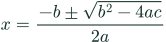
- Open LaTeX To Image and replace the sample input. Paste the expression above, without Markdown code fences, dollar-sign wrappers or a LaTeX document preamble. The editor already treats the input as math.
- Inspect the rendered formula. The square-root bar should cover the entire discriminant, and
2ashould be below the fraction bar. Seeing a preview is not enough: a valid formula can still express the wrong mathematics. - Select the format and background. Use PNG with transparency for a colored slide, or PNG with white background for a document that needs a fixed white box. Set the formula to black for a typical white worksheet.
- Choose the scale. Start at 2× for a raster image, then compare the displayed export dimensions with the size you need. The calculation below explains when 3× or 4× helps.
- Download and insert the file. Keep its proportions when resizing. Inspect it in the destination at the actual viewing or print size, especially the smallest subscripts.
If you only need to paste into a compatible editor, Copy image is convenient. If it fails, use Download and the destination's insert-image command.
PNG, SVG or JPG: choose by the destination
| Your requirement | Choose | What to check |
|---|---|---|
| A formula for slides, worksheets or an editor that accepts images | PNG | Enough pixels at the final display size; transparency if needed |
| An equation that will be resized for a website or vector design | SVG | The destination accepts SVG and keeps it as a vector |
| A form that specifically requires JPEG | JPG | Use a solid background; inspect fine lines after upload |
| An equation collaborators must edit as mathematics | Keep the LaTeX or use a native equation editor | PNG, JPG and SVG exports are pictures, not native equation objects |
PNG is the practical default for formula images: it supports transparency and lossless compression. JPG does not support transparency and can introduce artifacts around thin lines. Here, selecting JPG with a transparent background changes the background to white; the downloaded file uses .jpg.
SVG stays sharp when scaled as a vector. It is useful for diagrams and responsive pages, but a CMS may reject SVG uploads or a destination may rasterize the file. If that happens, use a sufficiently large PNG. An SVG contains vector shapes; that does not make the underlying equation editable as LaTeX.
How much resolution do you need?
For screens: work backward from the display width
Scale multiplies the raster image's width and height. If an equation is 280 × 80 pixels at 1×, it becomes:
| Export scale | Pixel dimensions | A practical use |
|---|---|---|
| 1× | 280 × 80 | Small output where these pixels are sufficient |
| 2× | 560 × 160 | Display at 280 pixels wide with two image pixels per CSS pixel |
| 3× | 840 × 240 | Display at 420 pixels wide with the same pixel density |
| 4× | 1120 × 320 | Display at 560 pixels wide with the same pixel density |
These are illustrative dimensions, not a measurement of the quadratic formula above. Use the dimensions shown for your expression.
For a two-pixel-per-CSS-pixel target, multiply the intended display width by two. A formula displayed at 450 CSS pixels wide needs about 900 image pixels. If its 1× width is 280 pixels, 3× falls short at 840; 4× supplies 1120. Export first, then reduce the display size in the destination. Enlarging a small downloaded PNG does not restore detail.
Scale does not rearrange a long equation. If it becomes unreadably small when fitted onto a slide, split it into aligned lines instead of increasing resolution alone. SVG avoids a fixed pixel ceiling, but it cannot make tiny text readable.
For print: pixels, physical size and DPI are different
Use required pixels = width in inches × required pixels per inch. For example, an equation printed 8 cm wide at 300 pixels per inch needs about 945 pixels across: 8 ÷ 2.54 × 300 ≈ 945. Use the printer or publisher's actual requirement; 300 is an example, not a universal rule for mathematical line art.
The converter offers pixel scales, not a custom DPI metadata setting. 4× does not mean “300 DPI.” Browser Canvas exports use 96 dpi for file formats that support resolution metadata, as described in MDN's Canvas export documentation. Check both the pixel dimensions and the placed width in your document. If a submission system requires a specific DPI tag or a different format, prepare that separately; changing the tag alone adds no detail.
Make the background and formula color work together
A transparent image has no background color of its own. The preview's checkerboard represents transparency; it is not part of the exported formula image.
- White document: use black or another dark formula color. Select white background if the destination handles transparency poorly.
- Dark slide: use a light formula color and PNG or SVG transparency. Dark lettering on transparency will still be dark after export.
- Mixed light and dark destinations: make separate color versions, or use a deliberate solid background. The image does not automatically recolor for dark mode.
If a transparent PNG seems black or invisible, place it on both a white and a dark background before re-exporting. The viewer's background may be the problem. If the destination flattens transparency incorrectly, export with an explicit white or black background and a contrasting formula color.
Copyable examples for matrices, multiple lines and cases
These snippets can be pasted directly into the converter. Each solves a layout problem that a plain line of math cannot.
A matrix with square brackets
A = \begin{bmatrix}
1 & 2 \\
3 & 4
\end{bmatrix}
Use & between columns and \\ between rows. Change both bmatrix names to pmatrix for round brackets. For larger matrices, the matrix generator lets you enter cells in a grid and reuse the image export controls.
A derivation aligned at the equals sign
\begin{aligned}
(a+b)^2 &= (a+b)(a+b) \\
        &= a^2 + 2ab + b^2
\end{aligned}
The & marks the alignment point; \\ starts the next row. Pressing Enter in the source alone does not create a mathematical line break. This is also useful when one long equation would become too small on a slide.
A piecewise function with conditions
|x| = \begin{cases}
x & x \ge 0 \\
-x & x < 0
\end{cases}
The cases environment supplies the left brace. Check that each condition stays beside the correct expression. Find more starting points in the formula example library, or look up commands in the LaTeX symbol reference.
Download, Copy image, Copy SVG or Copy HTML?
These actions serve different destinations:
| Action | What you get | Use it for |
|---|---|---|
| Download | A file in the selected PNG, SVG or JPG format | Uploading or inserting a specific file type |
| Copy image | A PNG image on a supported clipboard, even when SVG or JPG is selected | Pasting into an editor that accepts images |
| Copy SVG | SVG markup as text | A source editor or workflow that accepts SVG markup |
| Copy HTML | HTML text containing an image data URL in the selected format, dimensions and baseline styling | A page's HTML source, where those attributes are permitted |
| Copy LaTeX | The equation source | Keeping an editable copy of the mathematics |
Pasting SVG markup into an ordinary document may insert text instead of a picture. Likewise, Copy HTML is for HTML source; it does not promise a formatted image paste into Word or a rich-text editor. Some editors strip data URLs or inline styles. Download a file when that happens.
Align an equation image with surrounding text
A formula with subscripts extends below its mathematical baseline. Aligning the image's bottom with the text baseline can make the formula appear too high. Copy HTML includes an offset calculated from the formula's depth, along with display dimensions. Raising the PNG/JPG export scale adds pixels without enlarging that HTML display size.
The converter currently uses display-style math. Baseline correction does not switch it to compact inline typesetting, and a tall fraction can still increase paragraph line height. Put tall equations on their own line when appropriate. If the destination strips HTML styling, use its image-position controls. For presentation-specific advice, see LaTeX equations in PowerPoint.
For web publishing, also supply a meaningful text description. An image alone does not provide the structured mathematics of accessible MathML or a native equation. Keep the source available when readers need to reuse it.
Troubleshoot by where the problem appears
| Symptom | First check | Practical fix |
|---|---|---|
| The preview fails | Braces, environment pairs or an unsupported command | Try x^2, then add the original expression back in parts |
Code from a .tex project fails | Document wrappers, package commands or project-defined macros | Paste only the math and replace custom shortcuts with supported commands |
| Preview is right, downloaded PNG looks blurry in a document | Inserted width exceeds the available pixels | Export at a higher scale, reduce display width or use supported SVG |
| PNG looks sharp locally but blurry after upload | Destination resizing or compression | Use its original-quality option if available and inspect the uploaded result |
| Exported formula is cropped after insertion | Cropping or a fixed-size image frame in the destination | Reset the crop and preserve the image's aspect ratio |
| Transparent formula disappears | Lettering matches the destination background | Change formula color, or export on a contrasting solid background |
| Copy image fails | Clipboard permissions or browser support | Download and insert the file instead |
| Raster export reports an image-size error | Formula size combined with export scale | Lower the scale, split long lines or use SVG in a compatible destination |
For broken and corrected source examples, use the LaTeX rendering error guide.
Questions before you export
Can I convert an entire .tex file or a TikZ diagram?
Not with this converter. It renders MathJax-compatible math snippets and does not compile document preambles, arbitrary packages, TikZ or full pages. Complete projects need a TeX compilation workflow before page or image conversion. MathJax documents this distinction in its differences from actual TeX.
Can I get a transparent JPG or JPEG?
No. JPG and JPEG name the same format, which does not support transparency. Use PNG or SVG when you need a transparent background.
Will the image remain editable as an equation?
No. Keep Copy LaTeX output alongside the image so you can change the source and export again. Use a native equation workflow when collaborators need to edit the mathematics inside their document.
Are formulas uploaded, and can I share them safely?
Rendering and image export run in your browser; conversion does not upload your formula or generated image to the server. Recent formulas are stored in the current browser's localStorage. Copy URL and Share URL put the equation and appearance settings into the link itself. Anyone with that link can read the formula, and opening it makes the parameters part of a page request. A share URL is not private storage; avoid using it for confidential equations.
Can I convert a screenshot back into LaTeX?
No. This workflow goes from LaTeX text to an image. It does not perform OCR or recover the source from a screenshot.
Before leaving, save the LaTeX source and check the exported image in its final destination. If you are ready to try your own equation, open the converter.