
To add a formula image to a PowerPoint slide, render the equation in the LaTeX to PNG converter, choose a transparent background, download the file, and insert it as a picture. Keep the LaTeX source separately so you can revise the equation later.
Choose an editable equation or an image
Microsoft 365 supports LaTeX input for native Office equations, including in PowerPoint. If you need collaborators to edit the mathematics, try Insert → Equation and the LaTeX input option available in your version. Availability and menus can differ by platform and update channel; see Microsoft’s LaTeX documentation.
An exported image is useful when you want the same visual appearance across slides or a specific formula color. It is a picture, not a native editable math object. SVG remains scalable, but does not turn into an editable LaTeX equation when inserted.
| Your priority | Start with | What to keep in mind |
|---|---|---|
| Edit the mathematics inside PowerPoint | Native equation | Check LaTeX support in your Office version |
| Share a familiar image file | Transparent PNG | Export large enough for the intended slide size |
| Enlarge the formula without raster blur | SVG | Confirm SVG insertion works on the target device |
| Upload to a system that requires JPEG | JPG with a solid background | JPG cannot preserve transparency |
1. Start with a working formula
Open the formula example library and choose Quadratic formula, or copy this source into the converter:
x = \frac{-b \pm \sqrt{b^2 - 4ac}}{2a}
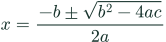
Paste only the equation. Do not include a document class, package imports, or a full .tex file. If the preview shows an error, use the rendering troubleshooting guide before downloading.
2. Match the slide background
Choose PNG, Transparent, and a dark formula color for a light slide. For a dark slide, use a light formula color such as white. Transparency removes the surrounding rectangle; it does not automatically change the formula’s color to match a slide theme.
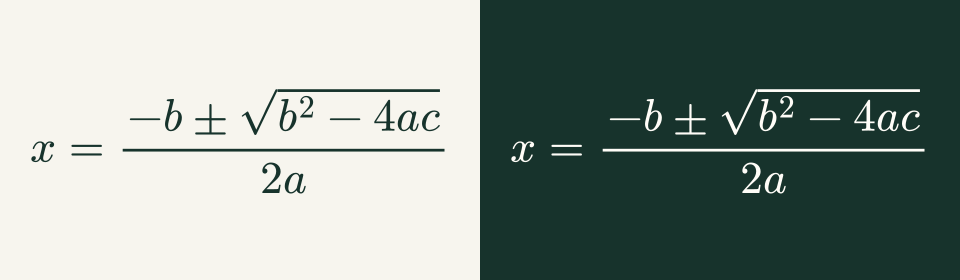
Illustration of background and formula-color combinations, not a screenshot of the PowerPoint interface.
Start with 2× scale for a normal slide. Try 3× or 4× when the PNG will be displayed larger, then inspect it at the final presentation size. Scale changes pixel dimensions, not the amount of mathematical content. For SVG, raster scale is not needed to keep edges sharp.
3. Download and insert the picture
- Check that the converter preview contains the whole formula.
- Select Download and save the PNG or SVG file.
- In desktop PowerPoint, use Insert → Pictures and choose the option for a file on your device. The exact wording varies by version.
- Select the downloaded file, then resize from a corner to preserve its proportions.
- View the slide in presentation mode and check contrast and readability.
Microsoft documents SVG editing and support by platform in its SVG guide. If your target version cannot insert the SVG, use PNG. Copy SVG copies markup, so use Download when you need an .svg file for insertion.
For a quick PNG workflow, Copy image may let you paste directly into your slide. If the browser or destination blocks clipboard access, download and insert the file instead.
4. Keep the formula editable at the source
Use Copy LaTeX to save the source in your working notes. To revise the picture, edit the source in the converter, export again, and replace the old picture. Add descriptive alt text in PowerPoint to communicate the equation’s meaning; an image alone does not provide the same math structure as a native equation.
The converter renders formulas and exports images locally in your browser. If you use Copy URL or Share URL, the URL includes the formula and appearance settings. Do not share that URL when the formula is confidential.
Fix common slide problems
| Problem | What to try |
|---|---|
| A white rectangle surrounds the formula | Export PNG with Transparent selected; a JPG or white-background PNG will retain its rectangle |
| The equation disappears on a dark slide | Export again with a light formula color |
| A PNG looks soft when enlarged | Increase the export scale or use SVG if the destination supports it |
| A formula looks stretched | Restore its proportions and resize from a corner |
| A long formula becomes too small | Split it into aligned lines; start with the aligned derivation in the example library |
| The preview itself fails | Check the source using the error guide |
Continue with the PNG converter, SVG converter, or formula examples.